

The fastest way to let a family member or sitter see your dog’s location is to send an in-app invite or generate a share link from the tracker app. Most platforms don’t require the recipient to buy anything, though some ask them to create a free account before the map loads. Share access only with people you trust, and turn on two-factor authentication first. Do that, and you’ll have a caregiver watching your dog’s location in under five minutes.
TL;DR:
- Sharing access with family or regular caregivers requires setting up persistent, account-based invites, which provide continuous real-time location updates.
- Temporary links or public shares are suitable for short-term sitters or lost dog alerts but pose higher privacy and security risks if not properly managed or expired.
- Always enable two-factor authentication, use unique passwords, and limit data access to safeguard your dog’s location and your personal information.
- Verify sharing success by testing with the recipient in real time and reset devices or accounts if they only see static locations or encounter connection issues.
- Regularly review and remove outdated viewers to prevent unnecessary data exposure and maintain control over who can see your dog’s whereabouts.
Table of Contents
- How to Share Dog Tracker Access From Your Phone
- Family Sharing vs Public Links vs Device Transfer: Which One Fits?
- Security Checklist Before You Add Viewers
- How to Verify Sharing Worked (And Fix It When It Doesn’t)
- Why Careful Sharing Protects Both Your Dog and Your Data
- Sharing Access With the HAVEN Freedom App
- Sources
- FAQ
How to Share Dog Tracker Access From Your Phone
The exact button labels change between apps, but the flow behind dog tracker sharing is nearly identical across the market. Once you know the pattern, you can find it in almost any pet GPS app within a minute.
- Open the tracker app and select your dog’s profile. If you manage more than one pet, tap into the correct device. Confirming each dog has a distinct profile matters here, especially in multi-dog households where activity histories can otherwise blur together.
- Look for “Share,” “Family,” or “Members” in the settings menu. This is usually tucked under the profile icon or a gear symbol near the top of the screen.
- Choose “Send invite” or “Create share link.” An invite typically goes out by text or email; a link can be copied and sent through any messaging app.
- Set permissions before you send it. Decide whether the person gets live location only, full history, or geofence and escape alerts too. If the app allows expiration dates, set one for anyone who isn’t a permanent co owner.
- Send it, then wait for confirmation. Most apps show a pending status until the invite is accepted.
On the recipient’s end, the steps mirror yours:
- They open the link or invite you sent.
- They sign in to an existing account or create a new one, depending on the app.
- They tap “Accept” to link their view to your dog’s profile.
- Some platforms allow a public link viewable in a browser with no account at all, though this trades convenience for weaker security.
Once accepted, check their screen yourself, or ask them to send a screenshot. Confirm the dog’s icon shows up correctly and that features like live tracking or geofence alerts appear as expected. If they only see a static last known location instead of a moving marker, the permission level probably needs adjusting.
Family Sharing vs Public Links vs Device Transfer: Which One Fits?
Not every situation calls for the same kind of access, and treating a one-off dog sitter the same way you’d treat a co-owner is where most sharing mistakes start.
Family or member invites create persistent, account-based access. The recipient needs their own login, but once it’s set up, they keep seeing your dog’s location every time they open the app. This fits co-owners, a spouse, or a regular sitter who watches the dog every week.

Public or temporary links work best for short-term situations: a dog walker covering one afternoon, or a “lost dog” mode where you want anyone nearby to help locate your pet fast. These links skip the account requirement, which is exactly what makes them convenient and exactly what makes them risky. A link posted in a community Facebook group or left in an old text thread can keep working long after you meant it to expire.
QR code or device ID transfer shows up on some tracker brands as a way to fully hand off a collar, useful when you’re rehoming a dog or permanently transferring ownership to another family member. This isn’t the same as sharing. It replaces you as the account owner rather than adding a viewer alongside you.
- Co-owner or daily caregiver → family/member invite
- Weekend sitter or dog walker → temporary link with an expiration date
- Rehoming or permanent handoff → device transfer, not a shared invite
Pro Tip: Before you hand someone a public link, ask yourself if you’d be comfortable with a stranger finding it. If the answer is no, use an account-based invite instead.
Security Checklist Before You Add Viewers
Sharing your dog’s location means sharing a live feed of your daily patterns too, including when you’re not home. Academic research has found security and privacy weaknesses across a number of pet-tracking apps, which is reason enough to treat account safeguards as standard practice rather than an afterthought.
- Use a unique email and a strong, unique password for the tracker account. Reusing a password from another app is the single easiest way for someone to take over your account.
- Turn on two-factor authentication if the app offers it, even if it adds an extra step at login.
- Limit what each viewer can see. A dog walker rarely needs your full location history; live tracking is usually enough.
- Set expiration dates on temporary access and actually follow through on removing old viewers once they no longer need it.
- Never post a live tracking link in a public forum, even temporarily, during a lost-dog search. Share it directly with people who are actively helping.
- Keep your app and the collar’s firmware updated, and check occasionally whether your device is set to continuous live streaming versus periodic updates, since that setting affects both battery life and how much location data gets transmitted.
Policy research on pet wearables recommends reviewing exactly how your device stores and shares location data, and limiting access strictly to people who need it. That advice holds whether you’re sharing with one family member or five.
How to Verify Sharing Worked (And Fix It When It Doesn’t)
A shared invite that “went through” on your screen doesn’t guarantee the other person is actually seeing anything useful. Run a quick test before you count on it.
- Trigger a real-world check. Ask the recipient to open the app while you walk the dog around the block or yard. Watching the map update in real time confirms both the connection and the update interval, rather than just trusting a static confirmation screen.
- If nothing shows up, start with the basics. Have them accept the invite again in the same app they received it, confirm the app is updated to the latest version, and try signing out and back in.
- Check the pet is actually visible. Some apps default to a “My Pets” filter that hides shared profiles until the recipient toggles a “Shared” or “All Pets” view.
- For secondhand devices, consider a factory reset before re-pairing. Privacy guides for smart pet devices recommend this to clear old account links before adding a new owner or viewer.
- If none of that works, contact support with specifics: device ID, account email, and the exact timestamp you tested. Vague reports take longer to resolve than ones with a timeline attached.
Why Careful Sharing Protects Both Your Dog and Your Data
Sharing your dog’s location is a small decision that carries more weight than it looks like on the surface. Every person you add can see where your dog spends time, which, in a lot of households, doubles as a map of when your home is empty. Treating access like a guest list instead of an open door is the difference between a helpful feature and a liability.
Attention to how collar and app data move between owners and caregivers shapes guides on boundary training and setup practices. Households with multiple viewers benefit from a simple habit: pick one day a season to open the sharing settings and remove anyone who no longer needs access. It takes two minutes and closes gaps most owners never think to check.
— Haven
Sharing Access With the HAVEN Freedom App
If you’re setting up a new dog GPS system rather than troubleshooting an old one, the HAVEN Freedom Wireless GPS Dog Fence and Tracking Collar is built around the same sharing logic covered above, without needing a monthly plan just to use the containment fence. The wireless boundary works right out of the box; live tracking and escape alerts through the app run on an optional plan.
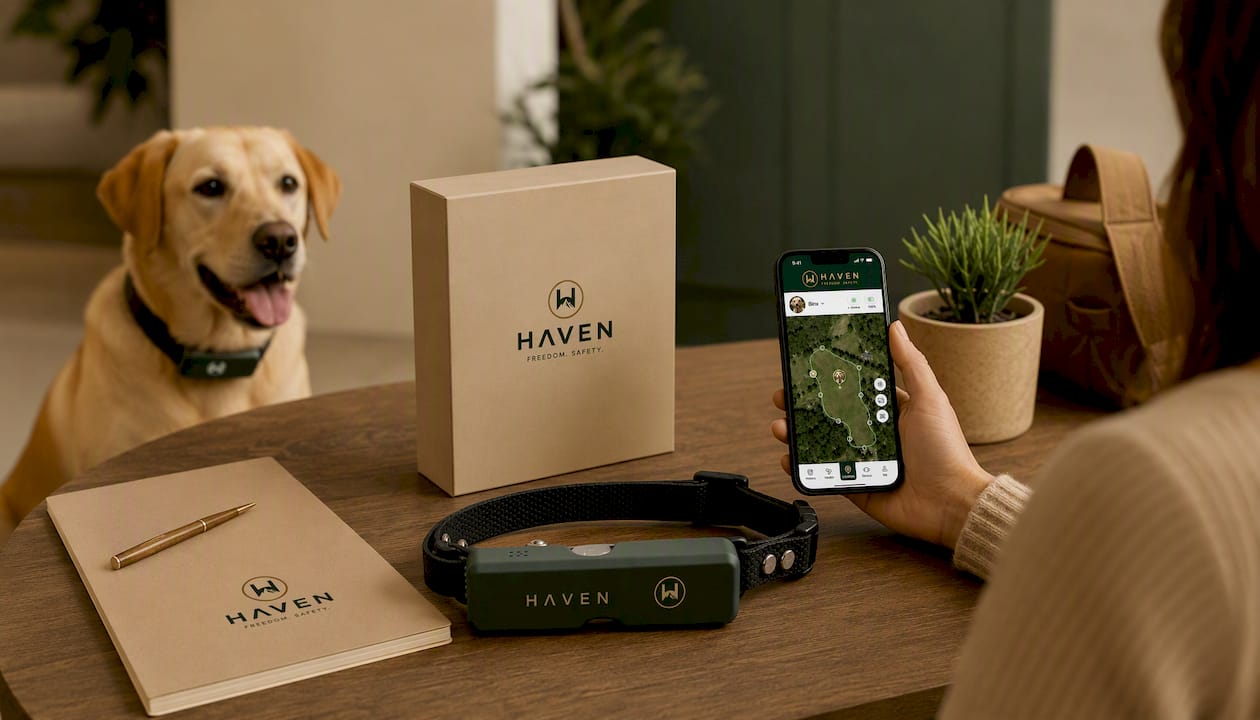
Setup follows the pattern most owners already expect: open your dog’s profile in the app, head to the sharing or family section, and send an invite to whoever needs visibility, whether that’s a partner, a regular sitter, or a family member checking in while you travel. Havenfreedom’s GPS dog fence setup guide walks through pairing the collar in under two hours, and the same app handles both boundary alerts and location sharing from one place. Kin Watchdog’s notes on location sharing permissions are also worth a look if you want a broader view of how access controls work across pet tech generally. Browse the full HAVEN Freedom lineup if you’re comparing collar configurations before you buy.
Sources
- Security and privacy of pet technologies: actual risks vs user perception (Frontiers)
- Pet wearables: policy briefings (University of Bristol / PolicyBristol)
FAQ
Can I give my dog tracker to someone else?
Yes, most tracker apps let you either share ongoing access through a family or member invite, or fully transfer the device to another account if you’re rehoming the dog. Sharing keeps you as the primary owner; transferring hands over full control, so pick the option that matches whether this is temporary or permanent.
How do I add someone to my dog tracker account?
Open your dog’s profile, find the “Share,” “Family,” or “Members” section, and send an invite or generate a share link. The recipient accepts it in their own app, which may require creating a free account depending on the platform.
Does the person I share with need their own account?
It depends on the app. Family or member style sharing usually requires the recipient to sign in or create an account, while some public or temporary links can be viewed in a browser without one, though that option offers less security.
What’s the best way to track a dog with multiple caregivers?
Give co-owners and regular caregivers persistent, account-based access, and reserve temporary links for one-off sitters or short trips. The HAVEN Freedom collar supports this kind of app-based sharing alongside its no-subscription wireless fence, which makes it a practical fit for households juggling several viewers.
How do I remove someone’s access to my dog’s tracker?
Go to the same sharing or family menu where you sent the invite, find the person’s name, and select remove or revoke access. Doing this regularly, especially after a sitter’s job is done, keeps your viewer list accurate and your dog’s location data limited to people who still need it.
Recommended
Keep reading
en
14 Days to Keep Your Dog on Your Property With a Boundary Plan
Compare fences, fence upgrades, GPS collars, and pens, then follow a 14 day boundary plan to reduce escapes and choose a setup that fits...
Read the poste collar humane
Humane E Collar Training: 7 Steps, Starting With a Vet Check
See how humane e collar training starts with a vet check, conditions tone and vibration, uses rewards, and reserves static stimulation as a last...
Read the postYour adventure starts here
Ready to give your dog more room to roam?
Give your dog more freedom to explore — and give yourself the reassurance of knowing they're never far away.
